Vibe Coding Notes — Google AI Studio
Lately I’ve been using tools like Cursor and Claude Code to vibe-code all sorts of odds and ends — but doing so burns through the tokens the company hands out to everyone.
In the spirit of saving the company some money, today’s short piece shares how you can do Vibe Coding with the token-free Google AI Studio[1] and spin up the AI app you need with zero code.
This article has nothing to do with databases — it’s pure “good stuff” sharing, so read on without worry.
Background
A while back, one of our R&D heavyweights shared an app with me. I opened it, saw “Three Hundred Tang Poems” at the top, assumed it was a little toy he’d made for his kid, and brushed it off.
A couple of days ago he gave an internal company talk about this thing he’d built. The gist: he’d used Google AI Studio to rapidly build a seekdb-related app with zero code. It was a great talk, and someone will apparently be writing it up and publishing it later (stay tuned).
Unfortunately his app only had to do with poetry, movies, and film reviews. My own literary cultivation is far too thin to make sense of the things these artsy types enjoy, so this time I won’t be sharing such highbrow fare — just a screenshot or two to give you the idea.
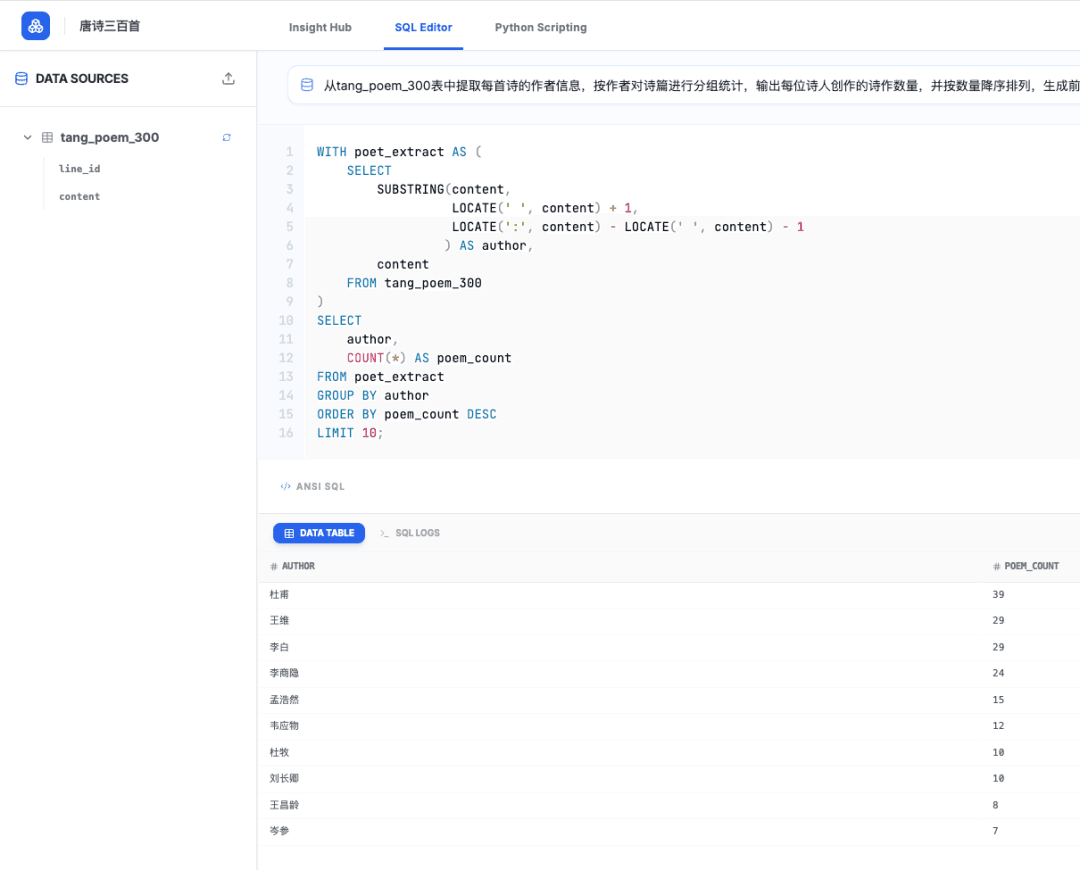
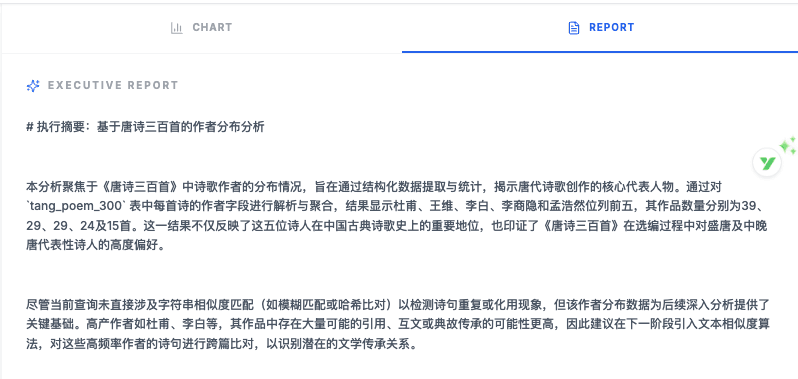
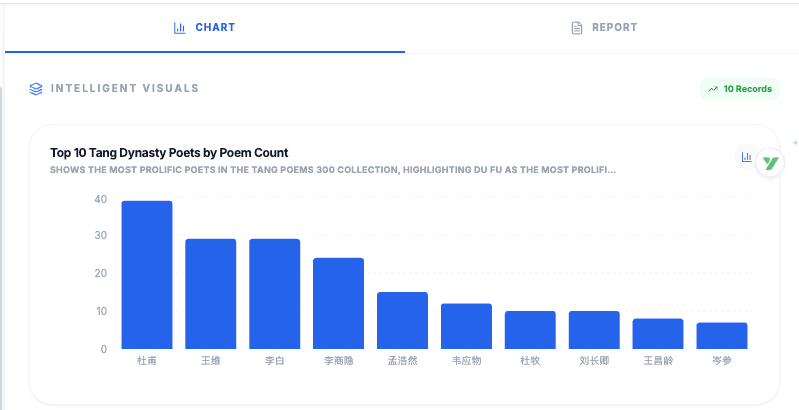
Yesterday at lunch I happened to learn that Google AI Studio is token-free, and that it can upload code to GitHub with one click — which instantly piqued my interest! Practice is the only test of truth, and since it’s free, I simply had to give it a try.
I didn’t expect the results to be so good, so I’m sharing it here too — how to use Google AI Studio to vibe-code something more practical for a WeChat-blog editor like me.
What I needed
Recently I hit a pain point: every time I publish an article, I need a cover image.
Grabbing a flowchart or architecture diagram from the article and using it as the cover feels a bit lazy; slapping on a random game screenshot is too frivolous (even though I do it all the time); and constantly asking the design team to do me an unpaid favor means I feel bad about wasting their time over and over.
I then tried a few apps that generate images from natural language. The pictures they produced were beautiful, but no matter how I worded the prompt, the AI always loved to improvise, and the final result was always a far cry from the image I had in my head. After that came endless slow tuning through more and more prompts — extremely tedious.
So I wanted to try using Google AI Studio to build an app: feed it a quick doodle of a sketch, then have the AI take that mental image and polish it into a beautiful picture in a chosen style.
The result
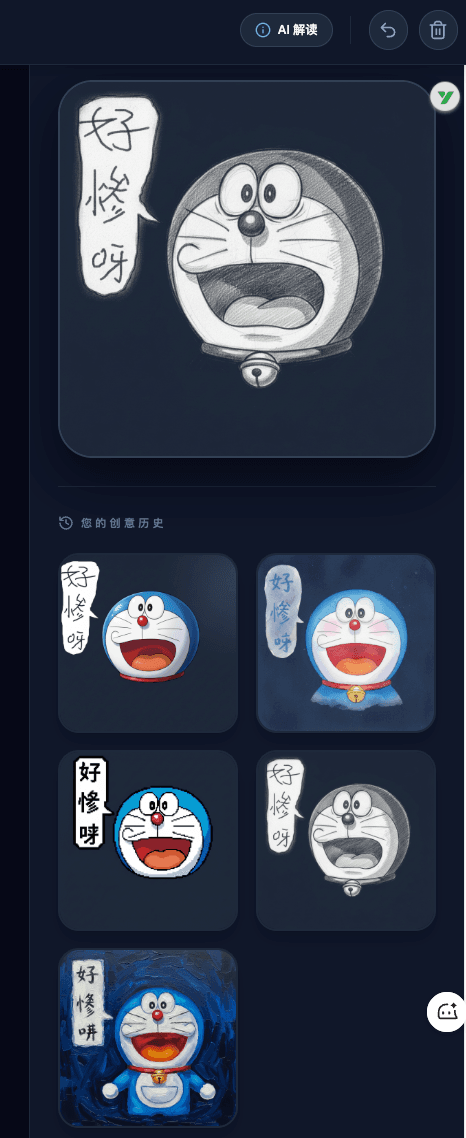
My input was a sketch drawn with the mouse: Doraemon with his mouth wide open, saying “How awful!”
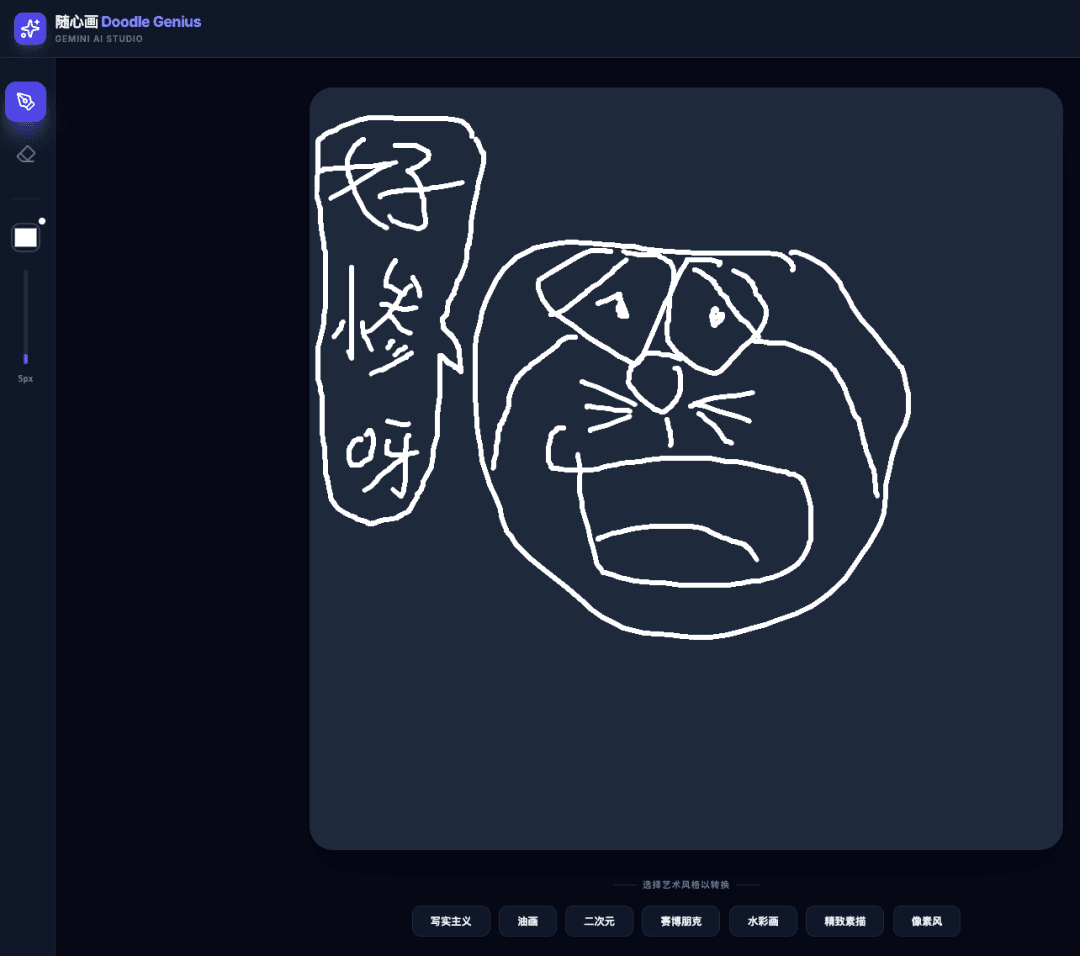
And here’s the app’s output. For the top image I chose the “fine sketch” style, and the result was almost exactly what was in my head — no need to repeatedly fine-tune. The images in the creation history use other styles (pixel, oil painting, watercolor, etc.).
The steps
I had a total of four exchanges with the Code Assistant:
- First: Build an app where I can sketch a picture freely and then have it polished.
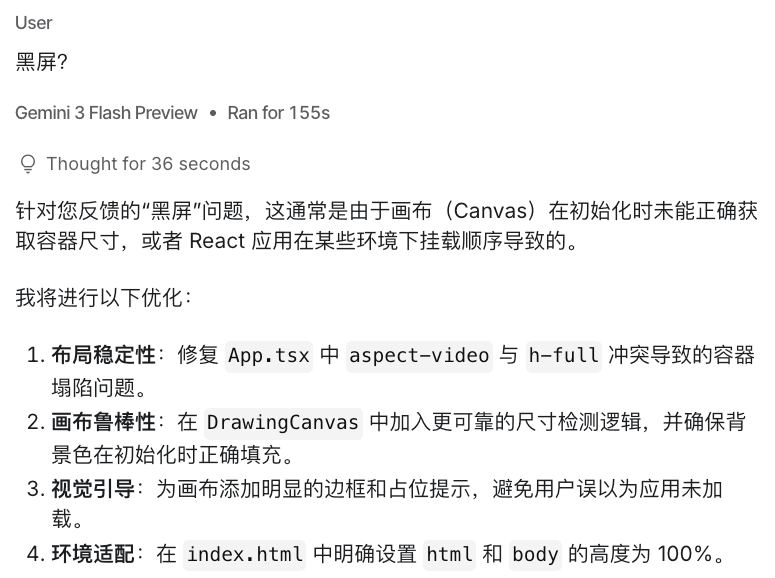
- Second: Black screen?
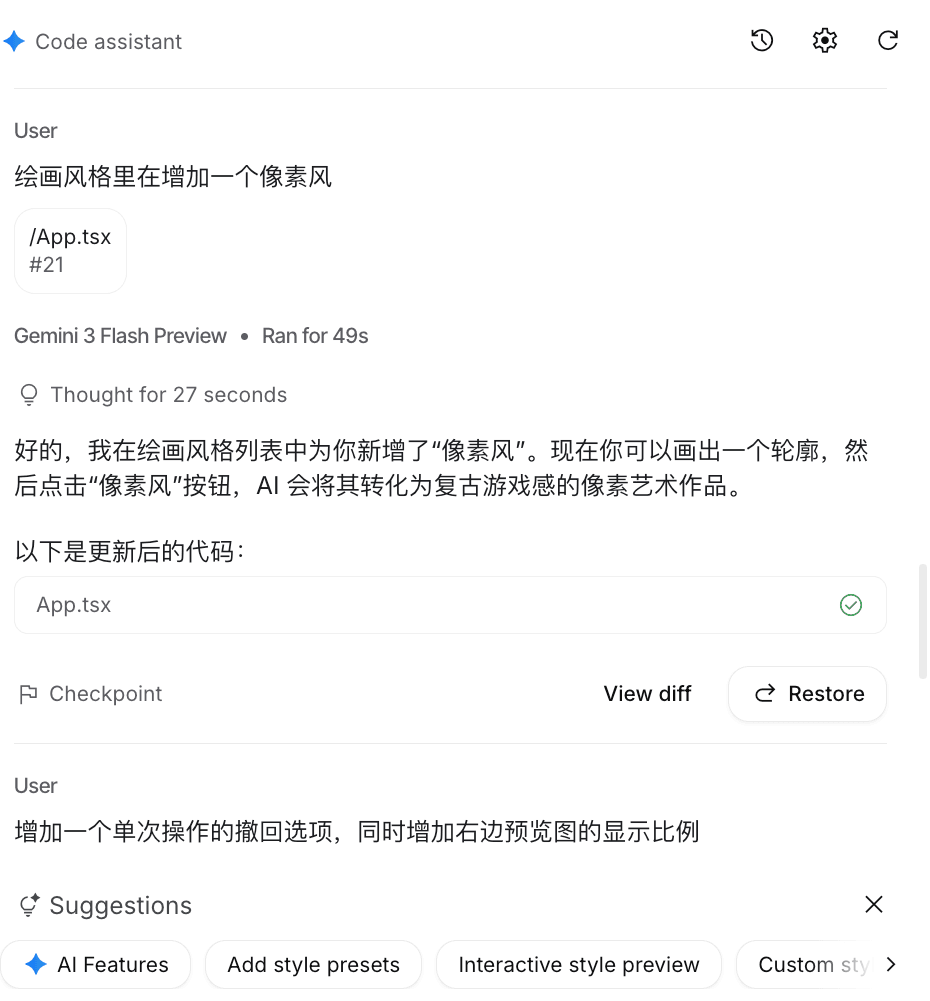
- Third: Add a pixel style to the painting styles.
- Fourth: Add an undo option for a single action, and increase the display ratio of the preview image on the right.
After the first request, it generated an app called “Doodle Genius,” but the Preview pane showed a black screen.

I pushed back with the second line — “black screen” — and the Code Assistant generated a new version of the code, which worked this time.
I tried it out briefly and found no issues. But I felt I should add my favorite “pixel style” plus an “undo the last doodle action” option for better usability, which led to the third and fourth exchanges.
You can also use “view diff” to see what changes the “pixel style” request triggered in the code.
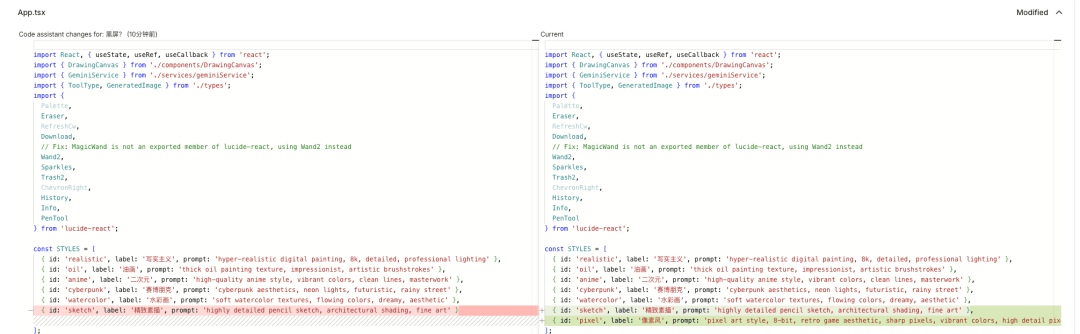
I definitely couldn’t write a prompt like “pixel art style, 8-bit, retro game aesthetic, sharp pixels, vibrant colors, high detail pixelated masterpiece” myself.
Finally, you can publish what you’ve built as a public app that others can access.
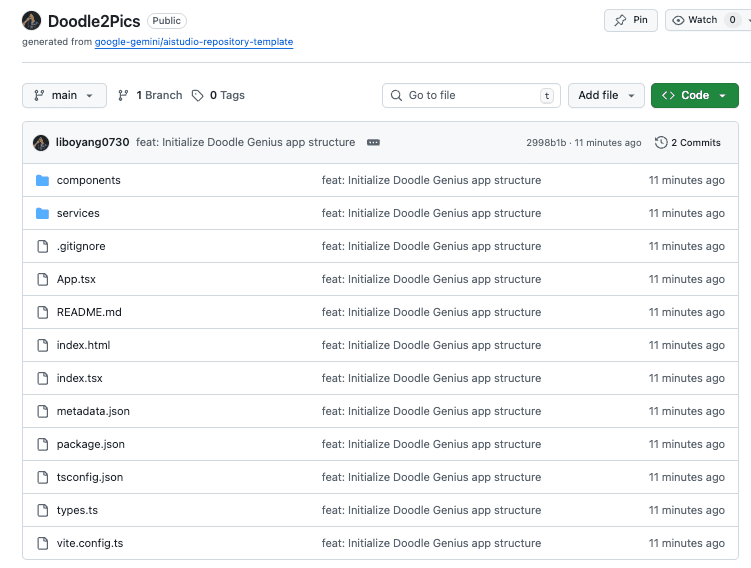
You can also upload a small project built through vibe coding to a GitHub repository with one click.
What’s more?
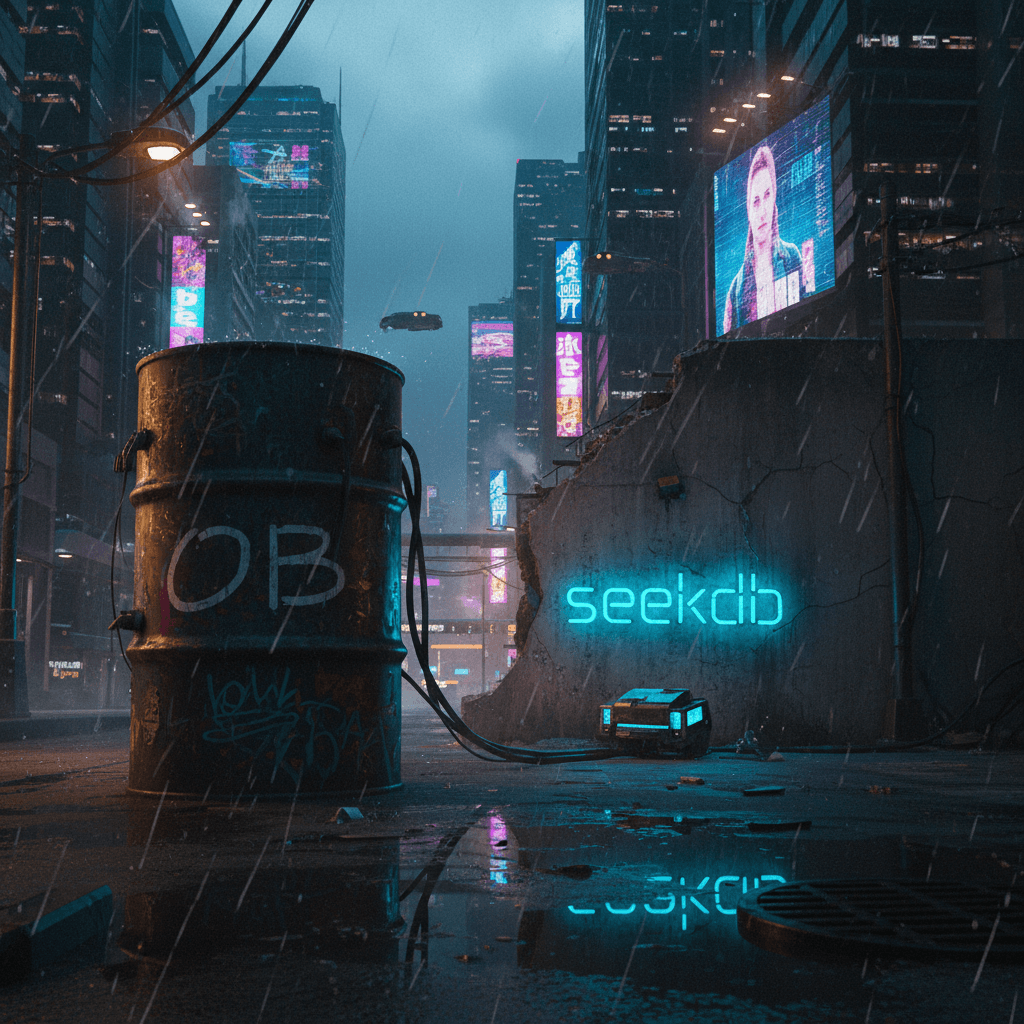
This little article has had nothing to do with databases from start to finish. To avoid a scolding from the boss, let me forcibly salvage the situation at the end by using a doodle to generate an image related to OceanBase and seekdb, and see how the app does.
The generated image:
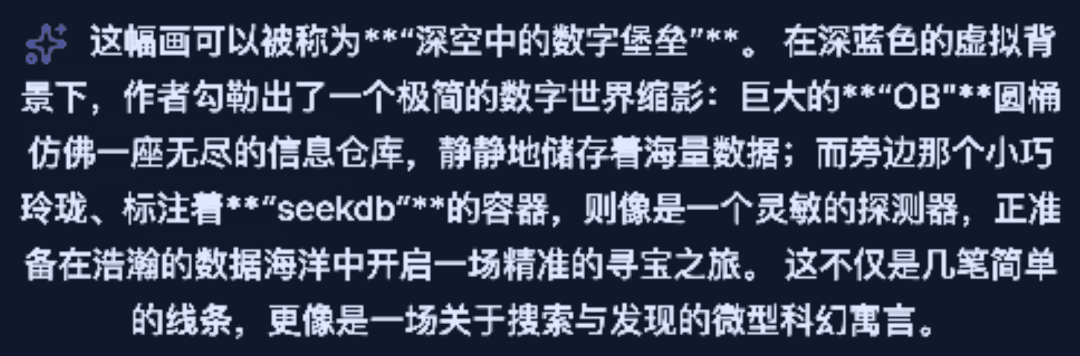
To produce the thing above with a prompt, you’d probably have to write something like this:
The input now: a quick doodle, plus selecting the “cyberpunk” style.
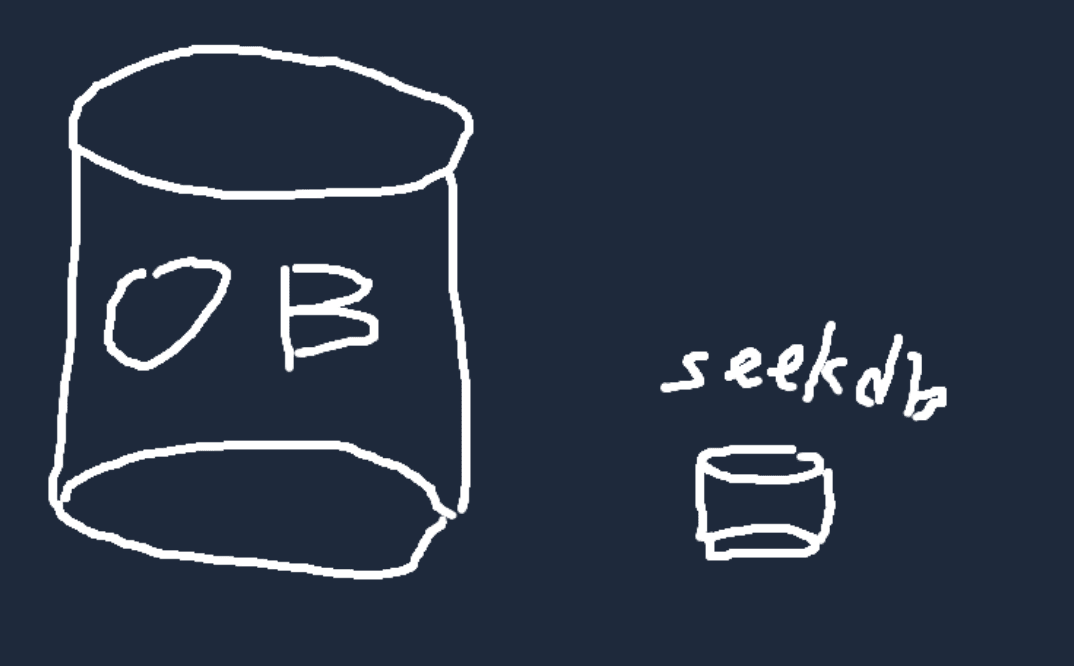
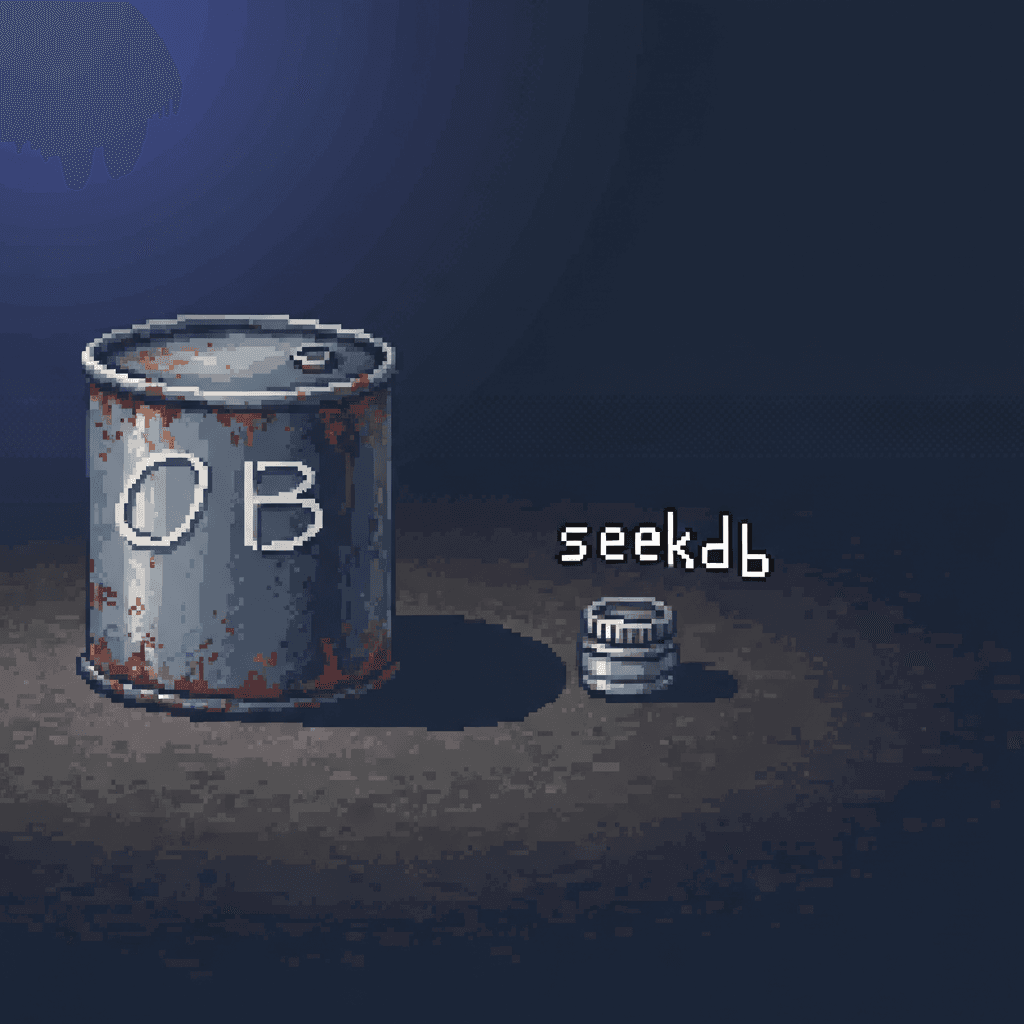
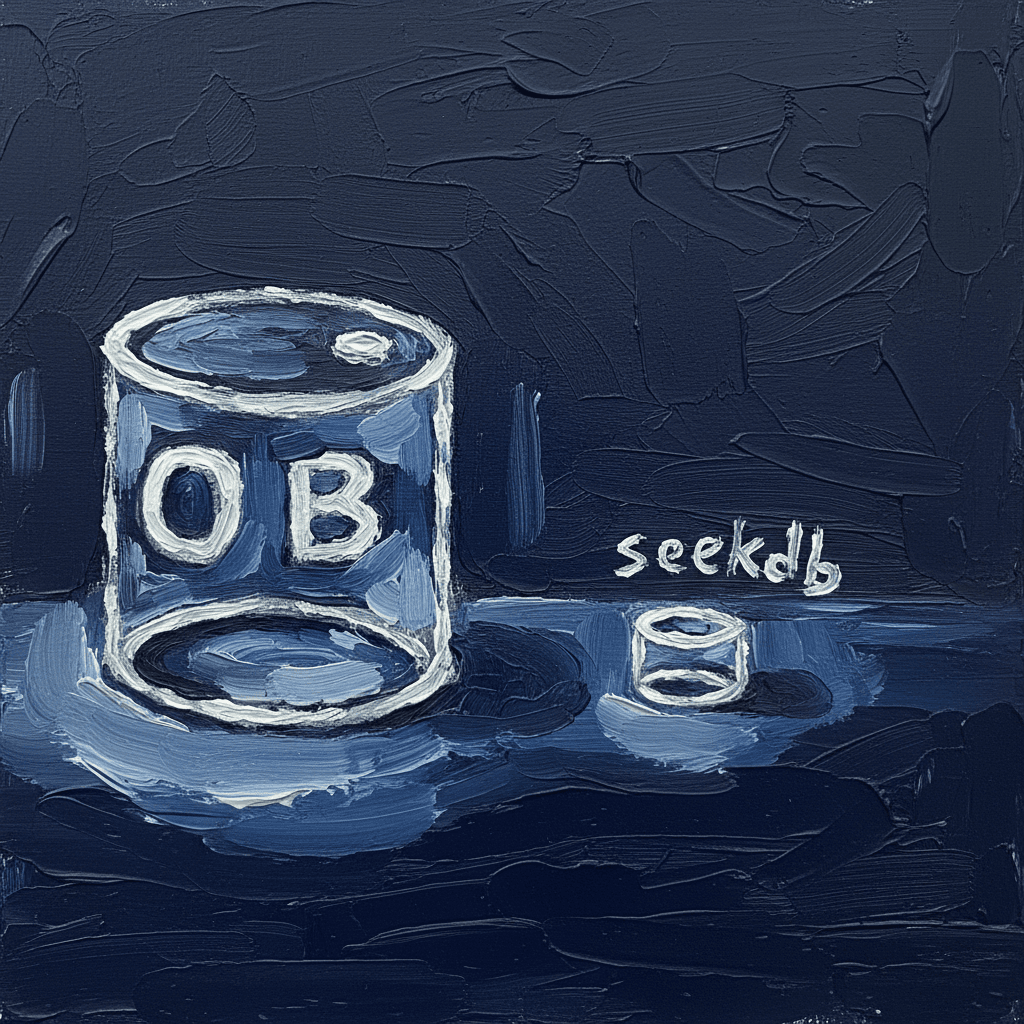
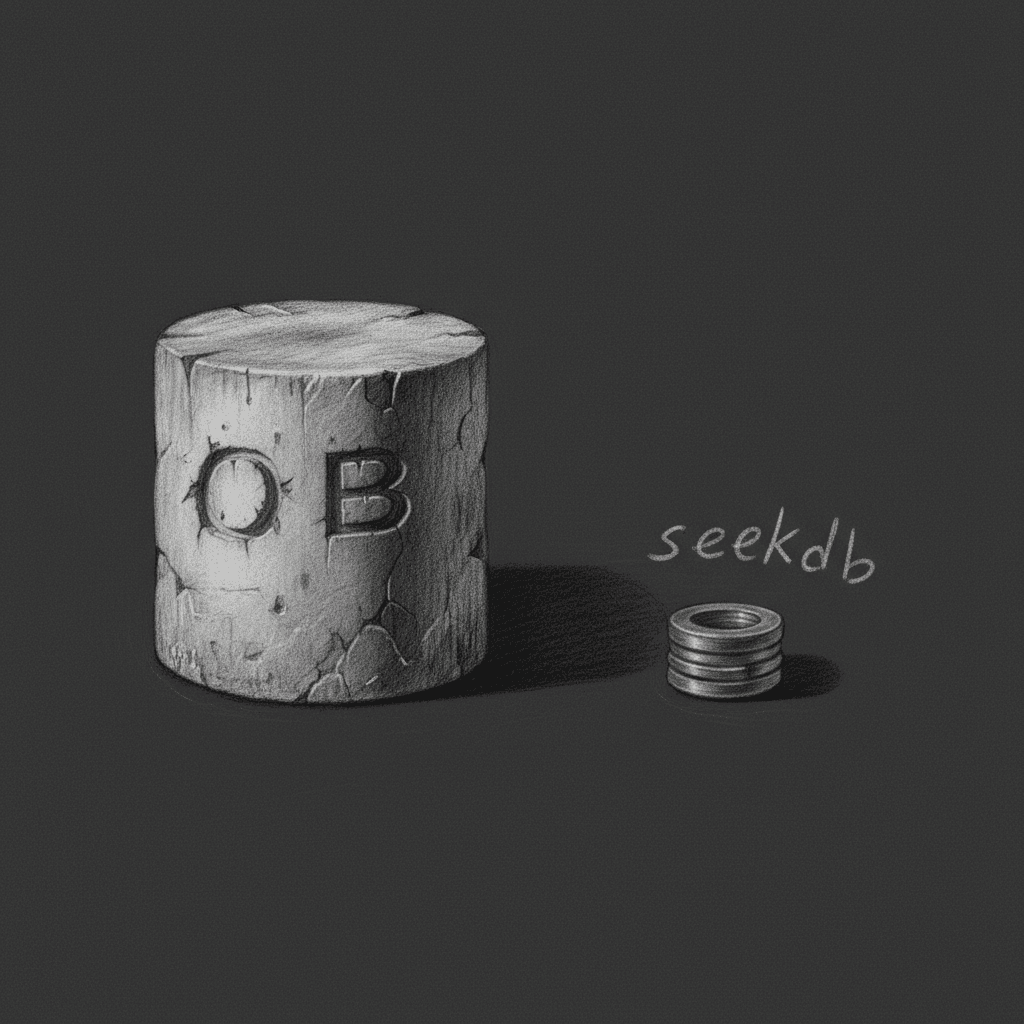
That said, the “cyberpunk” style is still a bit over the top and sneaks in a lot of its own embellishments. If you pick one of the other styles, you get the more accurate images below.
Pixel:
Oil painting:
Sketch:
Photorealistic:
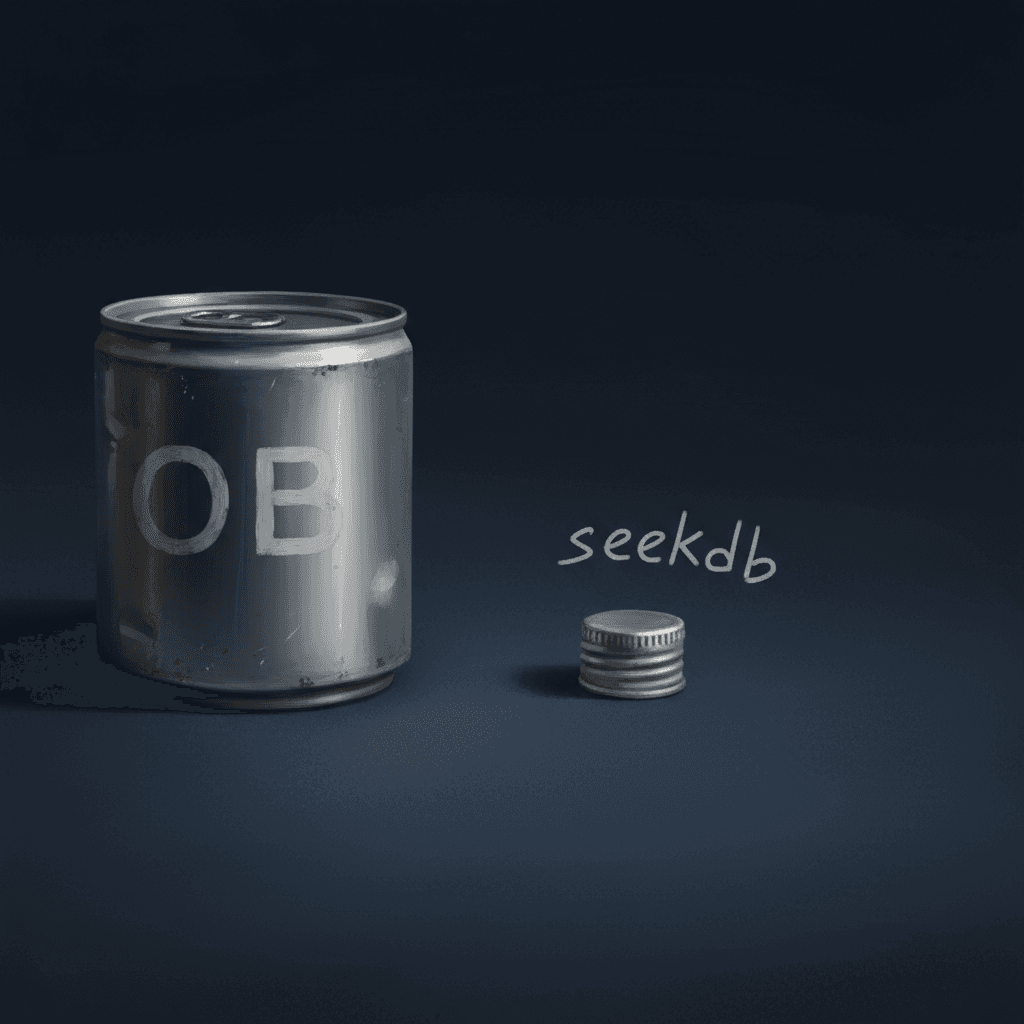
From now on, the OceanBase community WeChat account’s cover images will be made with this little tool!
That wraps up the main text.
Commercial Break
The tech feast you’ve been waiting for is loading — on January 31, the OceanBase Community Carnival kicks off in Shanghai!
Click the link at the end of the article to sign up


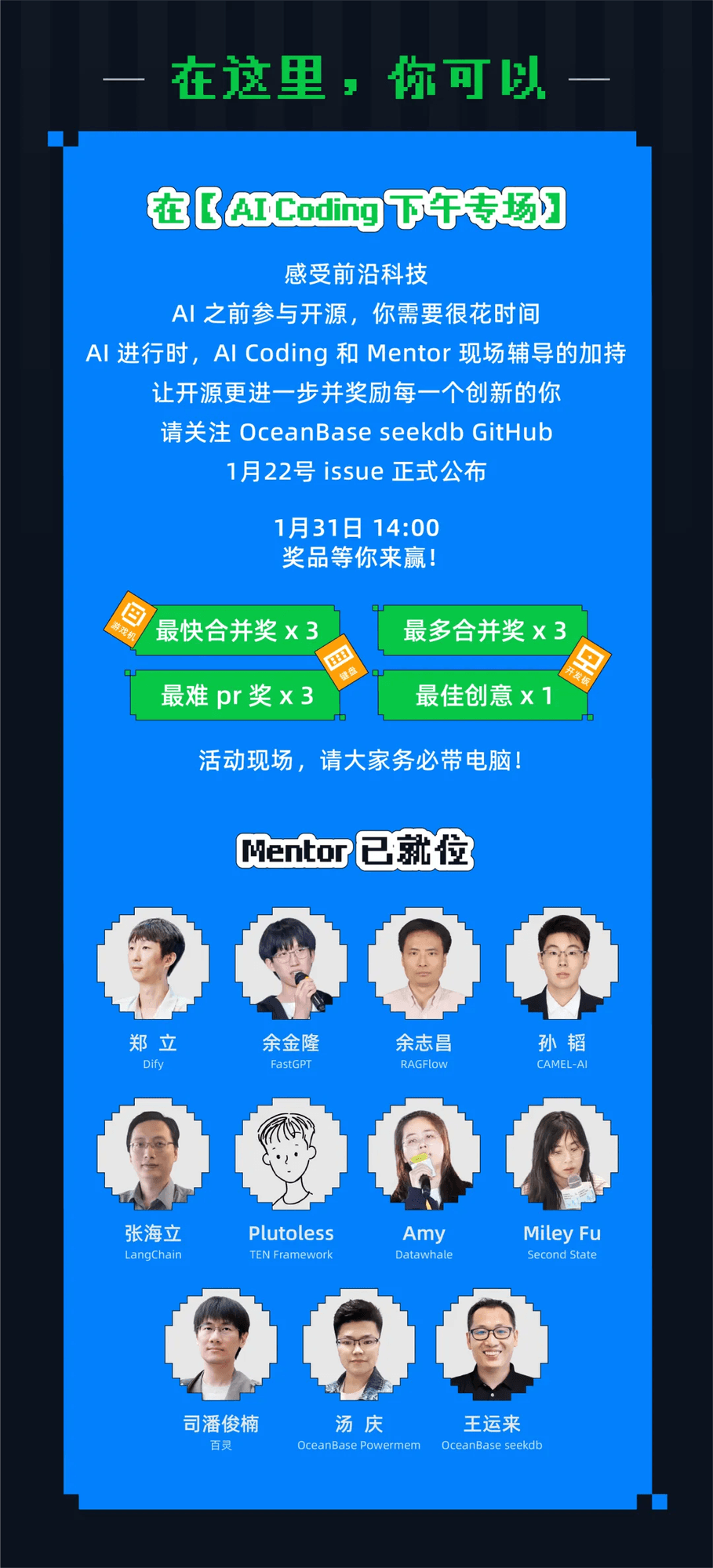

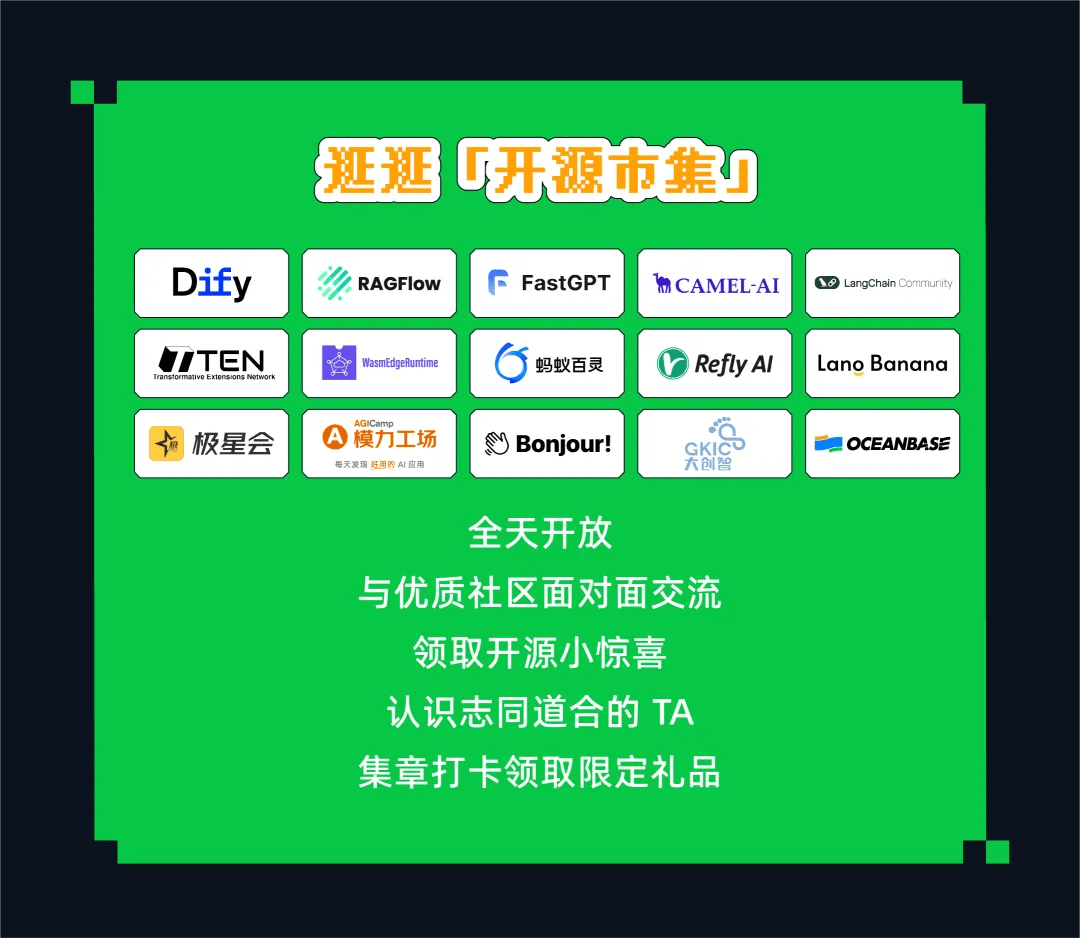

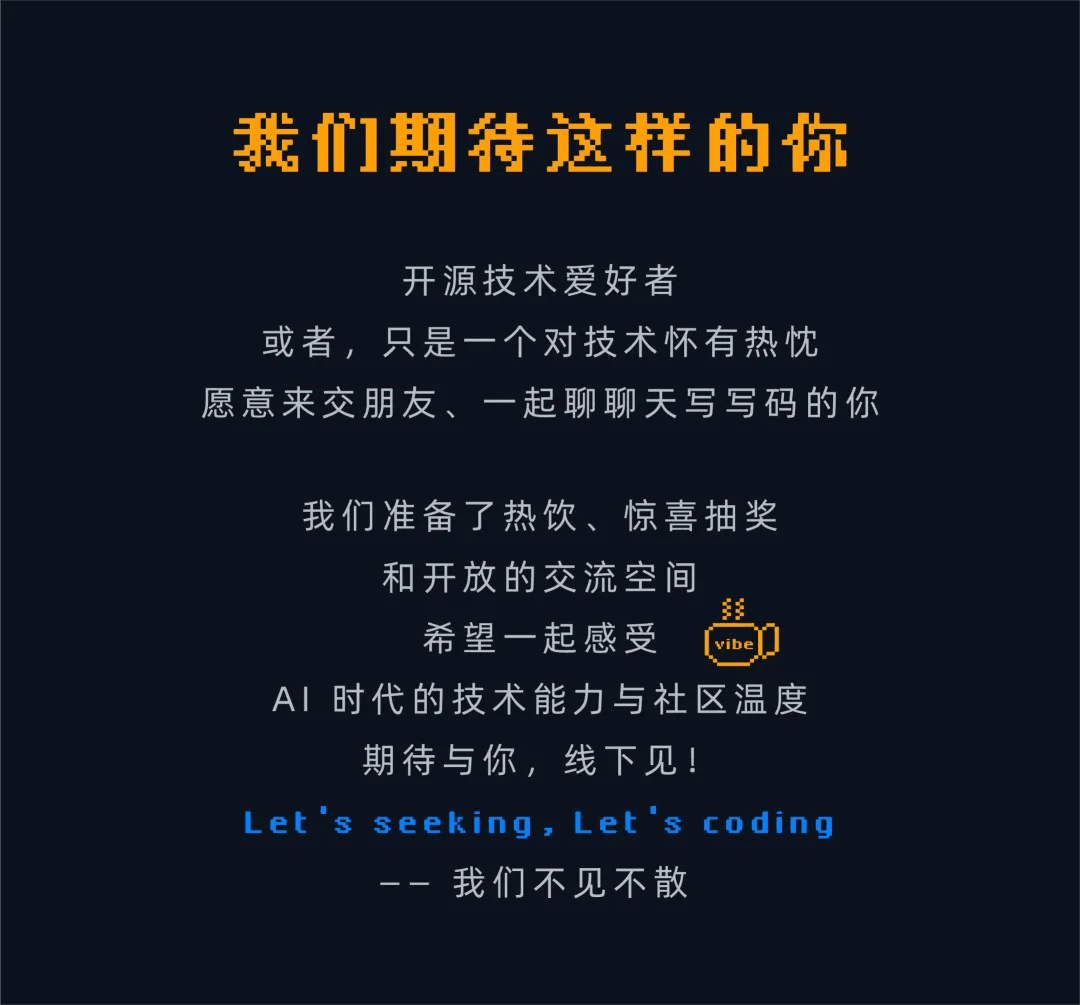
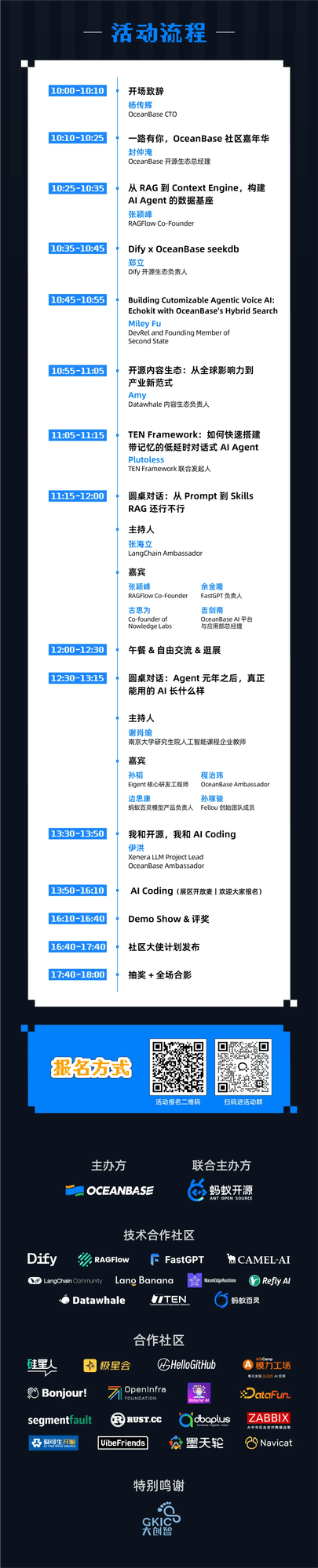
Meet tech leaders face to face, and team up with community peers to spark new ideas.
We’ve prepared all the highlights — we’re only waiting for you.
Scan the QR code on the poster to register.
Spots are limited, first come first served!
Join community developers for a date with technology!
Embrace open source, explore AI together — see you at the Carnival!
References
[1] Google AI Studio: https://aistudio.google.com/